A Simple Trick to Find Node-Level Record Counts in SAP HANA Calculation Views
October 11, 2025
When working with complex SAP HANA Graphical Calculation Views, a common challenge is determining the number of records at each intermediate node. This information is crucial for debugging data discrepancies, analyzing performance, or simply validating your modeling logic.
While SAP doesn't offer a direct "record count" button for each node, there's a straightforward workaround using the SQL generated by the Data Preview tool. Here’s a step-by-step guide to get the exact record count for any node.
How to Get the Record Count
1. Open Your Calculation View
Begin by opening your target Calculation View in the SAP HANA Studio.
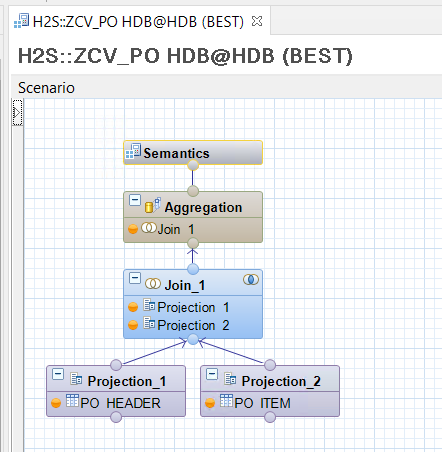
2. Preview the Node Data
In the graphical editor, navigate to the specific node (e.g., a Projection, Aggregation, or Join) for which you need the record count. Right-click on the node and select Data Preview.
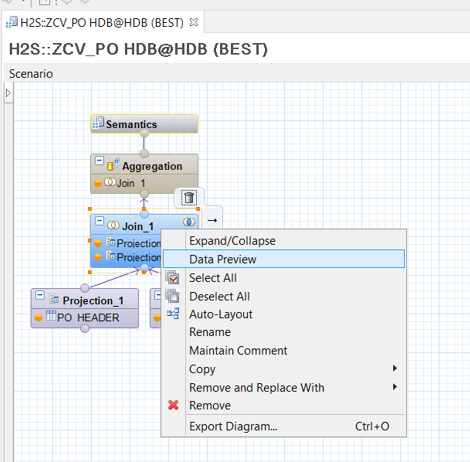
3. Navigate to the Raw Data Section
In the Data Preview window that appears, click on the Raw Data tab. This will show you a sample of the records being produced by that specific node.

4. Click the "Show Log" Button
On the toolbar of the Data Preview window, locate and click the Show Log button. This will open a new pane or window displaying the execution log for the data preview you just ran.

5. Find the Generated SQL
Within the log, you will find the SQL statement that the system executed to generate the data preview. This is the query that runs against the internal, temporary view created specifically for that node.
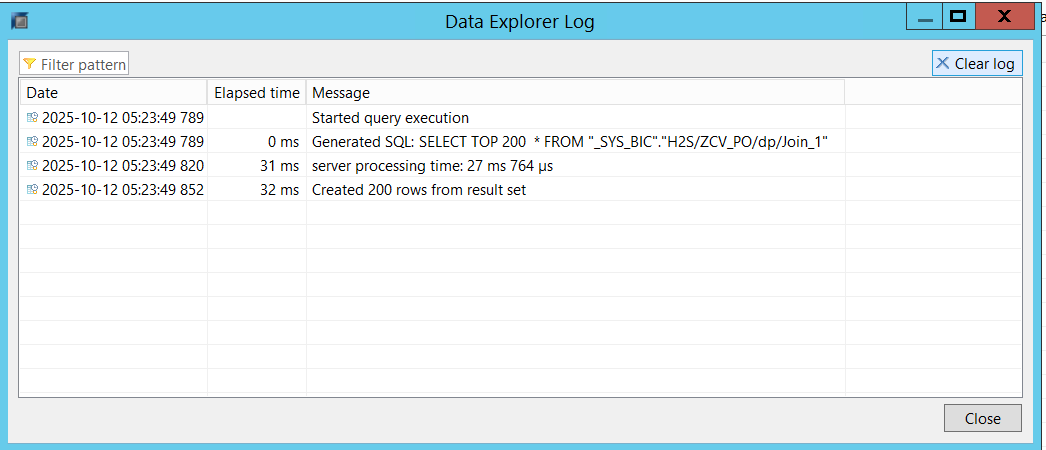
6. Copy the SQL to an SQL Console
Carefully copy the entire generated SQL statement from the log. Open a new SQL Console in your environment and paste the query there.
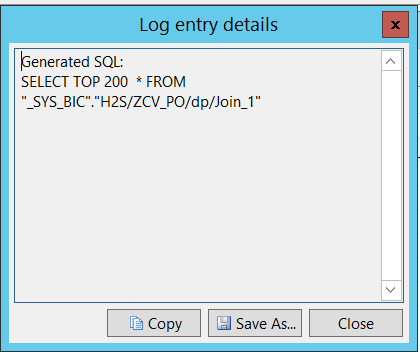
7. Modify the SQL to Count Records
This is the key step. The copied query is designed to fetch a limited number of sample rows (`TOP 200`). You need to modify it to count all rows instead.
- Find the `SELECT` clause, which will be followed by a list of columns.
- Replace the entire list of columns with `COUNT(*)`.
- Remove the `(TOP 200)` clause at the end of the query, if it exists.
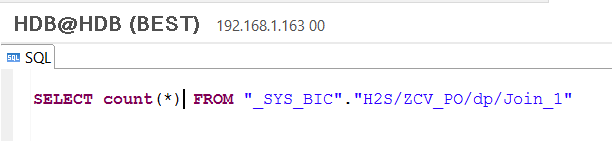
8. Execute the Query
Finally, execute the modified SQL statement in the SQL Console. The output will be a single number, which is the exact, total record count for that specific node in your Calculation View.
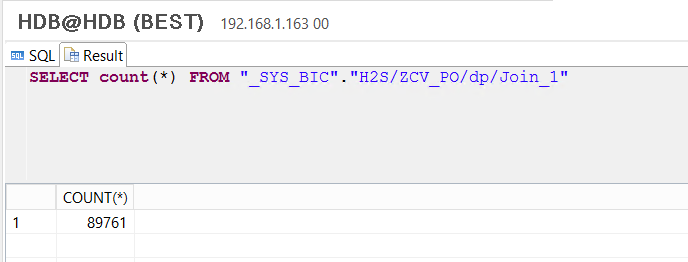
And that's it! By following these simple steps, you can quickly and accurately get the record count for any node, making it an invaluable technique for any SAP HANA developer.